
HandySwitcher
The Ultimate Task Manager
A task manager in the title bar: see every running app, switch with a tap, and close for real. The magazine’s best task manager of 2007 and of 2008.
- Latest
- 3.1, April 2008
- First
- 1.0, September 2003
- Price then
- $7.99 for 2.7, $9.99 for 3.x
- Today
- Free
- Runs on
- Pocket PC 2002, Windows Mobile 2003 and 5 (2.7); Windows Mobile 6 too (3.1). Portrait, landscape and square screens
The story
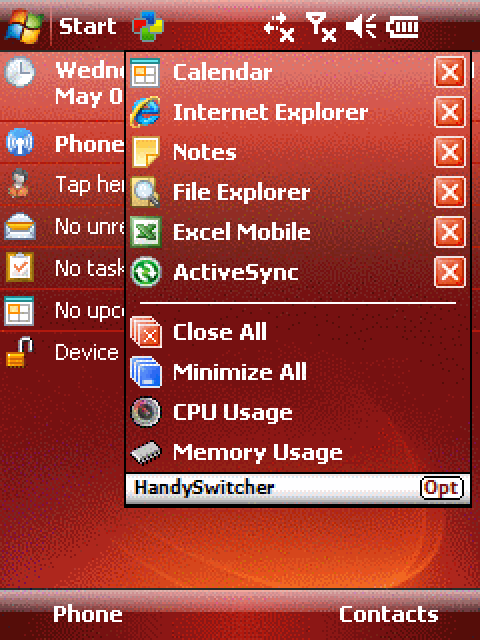
On a Pocket PC, the X in the corner did not close an app. It only hid it, and the app kept running and holding memory. HandySwitcher made that X close for real, and put a small icon in the title bar that opened a list of everything running. Tap a name to switch to it, tap its X to close it, or close them all at once.
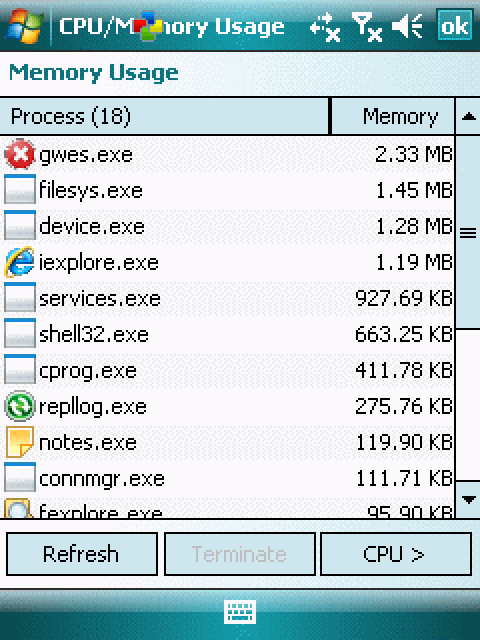
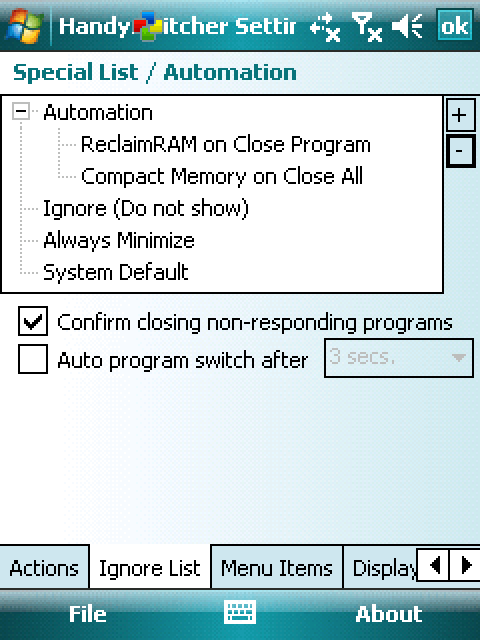
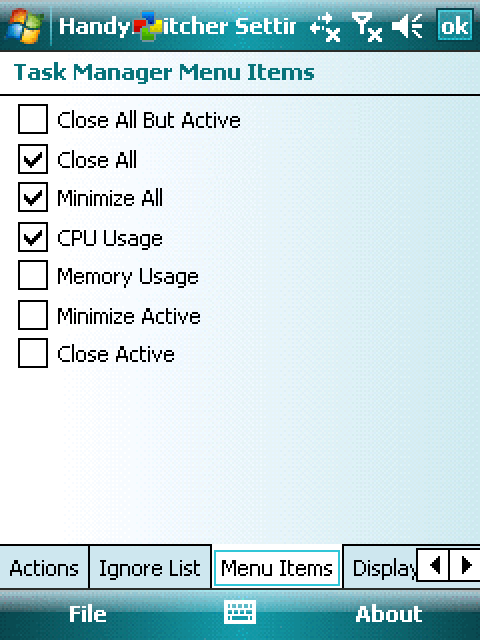
Version 2.7 brought the phone’s own keys into play: arrows to pick an app, Enter to switch, Right to close, so it worked with one thumb. Version 3.0 added skins, CPU and memory usage, a list of apps to leave alone, and your own actions for tap and tap-and-hold. It is the app switcher every phone has today, written by one engineer in Kanata.
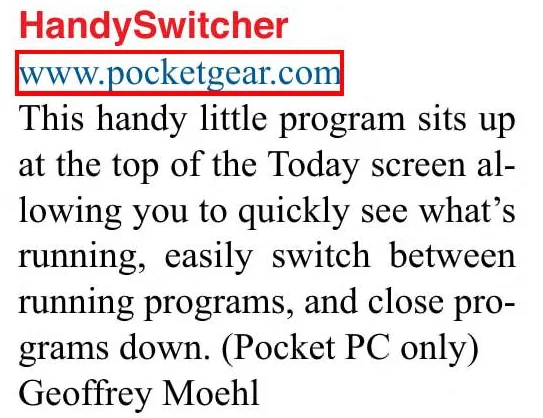
Smartphone & Pocket PC magazine named it the best task manager of 2007, and again of 2008.
Every version
From DinarSoft’s revision history and installers. Press Run to play through them, or step one at a time.
-
HandySwitcher 1.0 September 11, 2003
- The first release.
-
HandySwitcher 2.0 March 31, 2004
- Colorful menus, in the colors you choose.
- Places HandyMenu’s icon in compact mode.
-
HandySwitcher 2.0 update July 31, 2004
- Speaks Dutch and Spanish.
-
HandySwitcher 2.1 June 13, 2005
- The menu follows the theme colors.
- Close All shows even with one program running.
-
HandySwitcher 2.5 October 31, 2005
- Windows Mobile 5 support.
-
HandySwitcher 2.7 March 27, 2006
- Square screens.
- The hardware keys: Enter switches, Right closes, Left cancels, for one-hand use.
- Auto switch: rest on an app in the menu and HandySwitcher switches to it after a delay you set.
- Better phone edition support.
-
HandySwitcher 3.0 May 5, 2007
- Skins and a menu you arrange yourself.
- Your own actions for tap and tap-and-hold.
- An X that really closes, and Close All.
- CPU and memory usage.
- Ends background processes and frees the memory they leave.
- Windows Mobile 6, VGA and QVGA, every screen direction.
-
HandySwitcher 3.1 April 13, 2008
- Faster, and a free upgrade for 3.0 owners.
The X that really closes
On a 2003 Pocket PC, the X in the corner did not close anything. It only hid the program, which kept running and kept eating memory. Yasser’s HandySwitcher put a small icon in the top bar, and one tap showed every running program, each with an X that really closed it.
Try it. This is the menu as HandySwitcher drew it, with its own action icons and its five menu colors. Tap a name to switch to that program. Tap its X to close it. One of these programs has stopped responding, so watch what HandySwitcher does with it.
Saturday, May 5, 2007
Tap here to set owner information
No unread messages
No tasks
No upcoming appointments
NNotes
Bubble Breaker is not responding because it is busy, waiting for a response from you, or has stopped running.
Do you want HandySwitcher to terminate the program anyway?
Tap its icon in the top bar to open the menu. Tap a name to switch to it, or its X to close it.
This is the menu that won Task Managers at Smartphone & Pocket PC magazine two years in a row. The rest of this page opens it up, from the files in its installer down to single ARM instructions. All of it is read back from the copies DinarSoft published for Windows Mobile.
Two programs in 2006, a service in 2008
Inside the CAB installers sit ARM programs, made for the same chip family your phone runs today.
Version 2.7 is two programs that talk by message. Version 3.1 moves the work into a background service that starts with the phone, so the menu is there the instant you tap. Step through both.
- Version 2.7, 2006: two programs. HandySwitcher.exe (77,824 bytes) holds the menu and the settings. HHTask.exe (28,672 bytes) lives in the system folder and sits on the top bar.
- You tap the icon. HHTask sees the tap first and sends HandySwitcher a message, the way one browser tab can
postMessageanother. The menu drops down. - Version 3.1, 2008: the work moves into a background service. HandySwitcher.dll (143,360 bytes) runs inside services.exe, the phone’s host for always-on services, under the short name HSW. Think of a launchd or systemd service.
- HandySwitcher.exe shrinks to 10,752 bytes. It is now a starter: it asks the system to start the service, then passes on commands.
- Hardware buttons: setup adds shortcuts like HandySwitcher [Close All]. Assign one to a button, press it, and the starter tells the service
-closeall.
| 2002 to 2008 | 2026 | Why it is the same idea |
|---|---|---|
| Toolhelp snapshots: a list of every running process and thread | Activity Monitor, or ps on Linux | You can only manage what you can list. |
HandySwitcher.dll inside services.exe, prefix HSW | A launchd daemon or a systemd service | Always running, started by the system, no window of its own. |
PostMessage between HHTask and HandySwitcher | postMessage between browser tabs | Drop a message and move on; never block the sender. |
Settings under Software\DinarSoft\HandySwitcher in the registry | UserDefaults on iOS, SharedPreferences on Android | A small key-value store per app. |
| Shortcuts like HandySwitcher [Close All] for hardware buttons | iOS Shortcuts or Android quick-settings tiles | One press runs one action. |
A seat on the system’s top bar
The top bar belonged to Windows Mobile. No program was supposed to put buttons in it. HandySwitcher, HandyMenu and HandyLauncher all have icons there anyway, and the trick behind it takes three calls.
Every window on Windows has one window procedure, a function that receives every tap and key press meant for it. A tiny helper, HHTask.exe, finds the top bar by its class name and swaps in its own function. It keeps the old one. Taps on its icons, and on the (X), go to DinarSoft’s apps as a posted message. On the HandyMenu, HandyLauncher and (X) buttons it also checks for tap and hold, so a long press can do a second job. Every other tap goes, untouched, to the old function. This is subclassing, the same idea as wrapping a function in JavaScript and calling the original for everything you do not handle.
Tap a part of the bar, then step the code and watch where the tap goes.
Tap a part of the top bar:
- Your tap
- Its function
- HandySwitcher HandyMenu HandyLauncher Old function: the system
- 11C98
ldr r0,=HHTaskBar; the top bar’s class name - 11C9C
bl FindWindowW; find the system’s top bar - 11CA4
ldr r2,=12628h; its own function - 11CAC
mvn r1,#3; -4: its message handler - 11CB0
bl SetWindowLongW; swap its own in, get the old one back - 11CB8
str r0,[r1]; keep the old one - 126B4proc:
cmp fp,r3; a tap? (WM_LBUTTONDOWN) - 12748
bl PtInRect; on the HandySwitcher icon? - 12778
bl PostMessageW; tell that app - 127E4
bl PtInRect; on the HandyMenu icon? - 12844
bl PtInRect; on the HandyLauncher icon? - 12854
bl SHRecognizeGesture; tap, or tap and hold? - 128A8
bl PtInRect; on the (X) button? - 1294C
bl CallWindowProcW; not its own: pass it on
-
HWND bar = FindWindow(L"HHTaskBar", 0); -
old = SetWindowLong(bar, GWL_WNDPROC, -
BarProc); -
LRESULT BarProc(w, m, wp, lp) { -
if (m == WM_LBUTTONDOWN) { -
if (PtInRect(&rcSwitcher, pt)) -
return Tell(switcher, MENU); -
if (PtInRect(&rcMenu, pt)) -
return Tell(menu, Gesture()); -
if (PtInRect(&rcLaunch, pt)) -
return Tell(launch, Gesture()); -
if (PtInRect(&rcX, pt) && ownsX) -
return Tell(switcher, Gesture()); -
} -
return CallWindowProc(old,w,m,wp,lp); -
}
- msg
- 513 WM_LBUTTONDOWN: a tap
- pt
- 170,13 where you touched, in pixels
- to
- HandySwitcher who handles it
It posts a message to HandySwitcher, and the menu of running programs drops down. The system never saw the tap.
One helper serves all three apps. It reads the HandyMenu and HandyLauncher settings too, draws their icons, and if HandyMenu is not running yet, it starts it from the folder its installer recorded.
Polite, patient, then firm
Closing a program sounds simple. Yasser’s close routine treats every program the way a good host treats a guest: ask nicely, give it time, and only then insist.
It sends WM_CLOSE, the same polite request a desktop window gets when you click its X, so the program can save your work. Windows Media Player keeps playing music when asked, so for that one HandySwitcher presses its own Quit keys, Ctrl+Q, on your behalf. A busy program gets up to six seconds while the wait cursor spins. A program that never answers gets one question to you in plain words, and then TerminateProcess ends it. Pick a program and step through the code.
Bubble Breaker
Ended. Its memory is free again.
- 17D78
bl SetForegroundWindow; bring it to the front - 17D88
bl GetClassNameW; what kind of window? - 17D98
cmp r3,#87; "W", then "M", "P": Media Player? - 17DDC
bl keybd_event; Ctrl, Q: its own Quit keys - 17E6C
bl PostMessageW; WM_CLOSE: please close - 17E74
bl Sleep; 500 ms - 17E7C
bl IsWindow; gone? - 17E98
bl SetCursor; the wait cursor - 17EA8wait:
bl Sleep; 500 ms, up to 11 times - 17F24
bl MessageBoxW; still there: ask you - 17F40
bl GetWindowThreadProcessId; whose window? - 17F6C
bl TerminateProcess; end it
-
SetForegroundWindow(w); -
GetClassName(w, cls, 16); -
if (!wcsncmp(cls, L"WMP ", 4))// Media Player -
PressKeys(VK_CONTROL, 'Q');// its Quit -
-
PostMessage(w, WM_CLOSE, 0, 0); -
Sleep(500); -
if (!IsWindow(w)) return TRUE; -
SetCursor(LoadCursor(0, IDC_WAIT)); -
for (n = 11; n && IsWindow(w); n--) -
Sleep(500); -
if (!IsWindow(w)) return TRUE; -
if (MessageBox(0, msg, title, -
MB_YESNO) != IDYES) return FALSE; -
GetWindowThreadProcessId(w, &pid); -
h = OpenProcess(PROCESS_ALL_ACCESS, -
0, pid); -
TerminateProcess(h, 1);
- ms
- 6000 milliseconds since the tap
- win
- 0 IsWindow(w): is it still there?
- n
- 0 checks left
TerminateProcess ends it at once, and Windows gives back its memory. This is the X that really closes.
For engineers: which windows count as programs
HandySwitcher walks the windows with EnumWindows and keeps only real, visible, top-level programs. Version 3.1 carries its own list of system window classes to skip, among them desktopexplorerwindow (the Today screen), hhtaskbar, ms_sipbutton (the keyboard button), menu_worker, cursorwindow and tooltips_class32. It also knows that a window whose process is device.exe or rnaapp.exe belongs to the system. Your own ignore list sits on top of that.
Its settings, rebuilt from its own dialogs
A Windows program keeps the layout of each screen as data inside itself: every label, box and button with its exact place. These are HandySwitcher 3.1’s own dialog templates, read out of HandySwitcher.dll and drawn again here, unit for unit.
The Colors page is live. Pick Theme Colors and the menu takes the colors of the phone’s theme, read from the registry, the way an app follows dark mode today. Pick your own five colors and both menus on this page follow.
Actions
Tap
Tap & Hold
Program Icon (top or tray bar)
Tap
Tap & Hold
Task Manager Menu Items
Top bar Icons
Custom Colors
Menu Text
Menu Background
Icons Background
Highlighted Text
Highlighted Background
Menu Colors :
About

HandySwitcher 3.1
www.dinarsoft.com
Copyrights Reserved 2004 - 2008(c)
The trial period will expire after 15 day(s)
Your Pocket PC Code:
BC11 - 18CC - CSRB - C9RG
Enter Your Unlock Key Here:
HandySwitcher Registration
Tap a color square on the Colors page. The menu above, and the HandySwitcher at the top of this page, follow it.
On the About page, tap Register... and type the freeware key: YQMH - QLUC - AEVV - MVEI.
A key made from his name
HandySwitcher was shareware: 15 days to try it, then a 16-letter key. In 2026, Yasser Awad released it as freeware, and the key that opens every copy of version 3.1 is made from his own name.
Here is how a key was born. Each Pocket PC has a device ID. HandySwitcher turns it into a 16-letter Pocket PC Code and shows it on the License Key screen. The buyer sent that code to DinarSoft, and DinarSoft sent back the key. The key engine is Yasser’s own take on RC4, a classic cipher. A deck of 120 numbers is shuffled with the product name, then dealt, card by card, over the letters of the code. Each product name gives a different shuffle, so a HandyMenu key never opens HandySwitcher. The letter O never appears, so nobody reads it as a zero.
Version 3.1 also accepts a few built-in codes, so one key fits every device. The first of them is YASSERMOHAMEDALI: his name. Step the engine on it below and you get the freeware key. Or type any Pocket PC code.
The engine is one of 24 functions, 4,508 bytes of machine code, shared instruction for instruction by HandySwitcher 2.7, HandyMenu 3.6 and HandyLauncher 3.4. The Pocket PC Code, the key engine and the trial record are among them: DinarSoft wrote them once and built all three apps on them.
16 letters or digits. Dashes and spaces are fine.
codeYASSERMOHAMEDALI
keyYQMHQLUCAEVVMVEI
Key: YQMH - QLUC - AEVV - MVEI
- 124F8fill:
strh r3,[r1]; S[i] = i, 120 times - 12534
strh r3,[r1]; K[i] = name[i mod length] - 1255C
mov r0,#120; j = (S[i] + K[i] + j) mod 120 - 1258C
strh r7,[r0]; swap S[i], S[j]: the shuffle - 125ACnext:
add r1,r7,#1; i = (i + 1) mod 120 - 125D0
ldrh r5,[r4]; the card at i - 125DC
add r1,r8,r5; j = (j + S[i]) mod 120 - 125FC
strh r3,[r4]; swap: S[i] = S[j] - 12600
strh r5,[r0]; S[j] = the old S[i] - 1260C
add r1,r3,r2,lsr #16; t = (S[i] + S[j]) mod 120 - 12630
mov r0,#25; keep 0 to 24 (mod 25) - 12634
eor r1,r2,r3; code letter XOR S[t] - 12650
add r0,r3,#65; + A - 12658
strh r0,[r6]; write the key letter - 12660
cmp r3,#79; O or later? - 12664
addhs r3,r0,#1; then one up: no O - 12678
bhi next; next letter
-
unsigned short S[120]; -
for (i = 0; i < 120; i++) S[i] = i; -
for (i = 0, j = 0; i < 120; i++) { -
j = (S[i] + name[i % len] + j) % 120; -
swap(&S[i], &S[j]);// shuffle -
} -
for (k = 0, i = 0, j = 0; k < 16; k++) { -
i = (i + 1) % 120; -
j = (j + S[i]) % 120; -
swap(&S[i], &S[j]); -
t = (S[i] + S[j]) % 120; -
c = (code[k] ^ S[t]) % 25 + 'A'; -
if (c >= 'O') c++;// no O -
key[k] = c; -
}
- code
- I letter 16 of your code
- out
- I letter of the key
I (73) XOR 65 = 8. Mod 25 gives 8, plus A gives I.
The freeware key for HandySwitcher 3.1: YQMH - QLUC - AEVV - MVEI
HandySwitcher’s own check routine, taken from the archived file and run in an ARM emulator, accepts this key on both 3.1 builds. It accepts every device key the engine makes, and it turns away every near miss and every key made for another product.
The 15 days are counted just as carefully. The installer writes the install date into the registry once, as 14 bytes. The date is there twice, each copy in a different disguise, with a checksum. Even the record’s name is built from pieces, so it never appears whole in the file. If the record is missing, the check treats the trial as over. Move the phone’s date and watch.
The record’s name is never stored whole. The code builds it from pieces at run time:
"Rp"+"p"+"Help"=RppHelp
"Te"+"dy"=Tedy
- Record
- 14 bytes: the install date, twice, plus a checksum
- HandySwitcher says
- The trial period will expire after 12 day(s)
Drag past day 15, then drag back. The record has already been replaced.
For engineers: from device ID to Pocket PC Code
ldr r0,=01010054h ; IOCTL_HAL_GET_DEVICEID bl KernelIoControl ; ask the hardware for its ID ldr r5,="%02X" ; every byte as two hex digits ldr r1,="730007B6BFA3..." ; no ID? a fixed fallback ldrh r1,[r0,#32] ; digit k + 16... add r2,r1,r2 ; ...is added to digit k cmp r1,#79 ; no O here either strh r7,[r6,#32] ; cut to 16 characters Awards and reviews
| App | 2003 | 2004 | 2005 | 2006 | 2007 | 2008 |
|---|---|---|---|---|---|---|
| HandySwitcher | No entry | Nominee | Nominee | Nominee | Winner | Winner |
NomineeHandySwitcher, 2004, Task Management
NomineeHandySwitcher, 2005, Task Management
NomineeHandySwitcher, 2006, Task Management
WinnerHandySwitcher, 2007, Task Managers


WinnerHandySwitcher, 2008, Task Managers

Foxpop Gold
Foxpop · 2003
Staff Pick, “what we can’t live without”
Handango · 2007
GadgetMix
functional and must have on every Pocket PC
Read the reviewHandySwitcher · Kamaldeep Singh, January 17, 2007
Arranged By: DateNewest on top
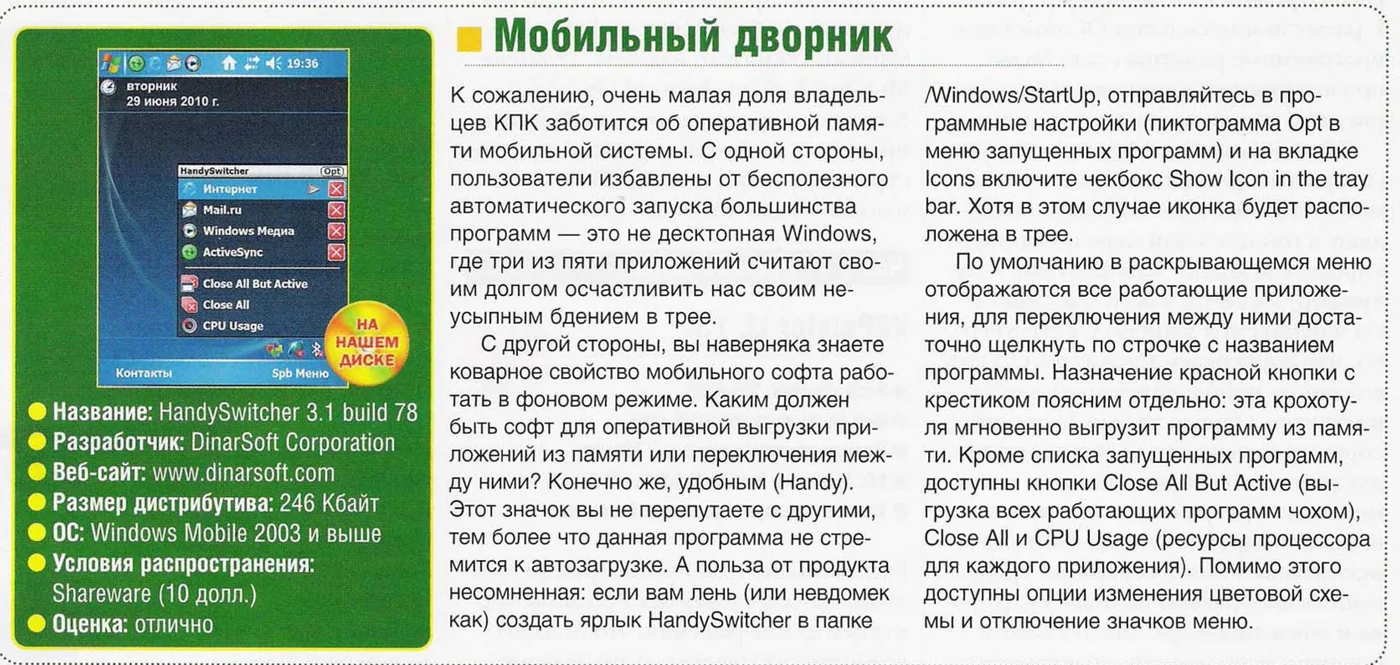
- Hard’n’SoftAug 2010Mobile janitor (in Russian), rated excellent
Mobile janitor (in Russian), rated excellent
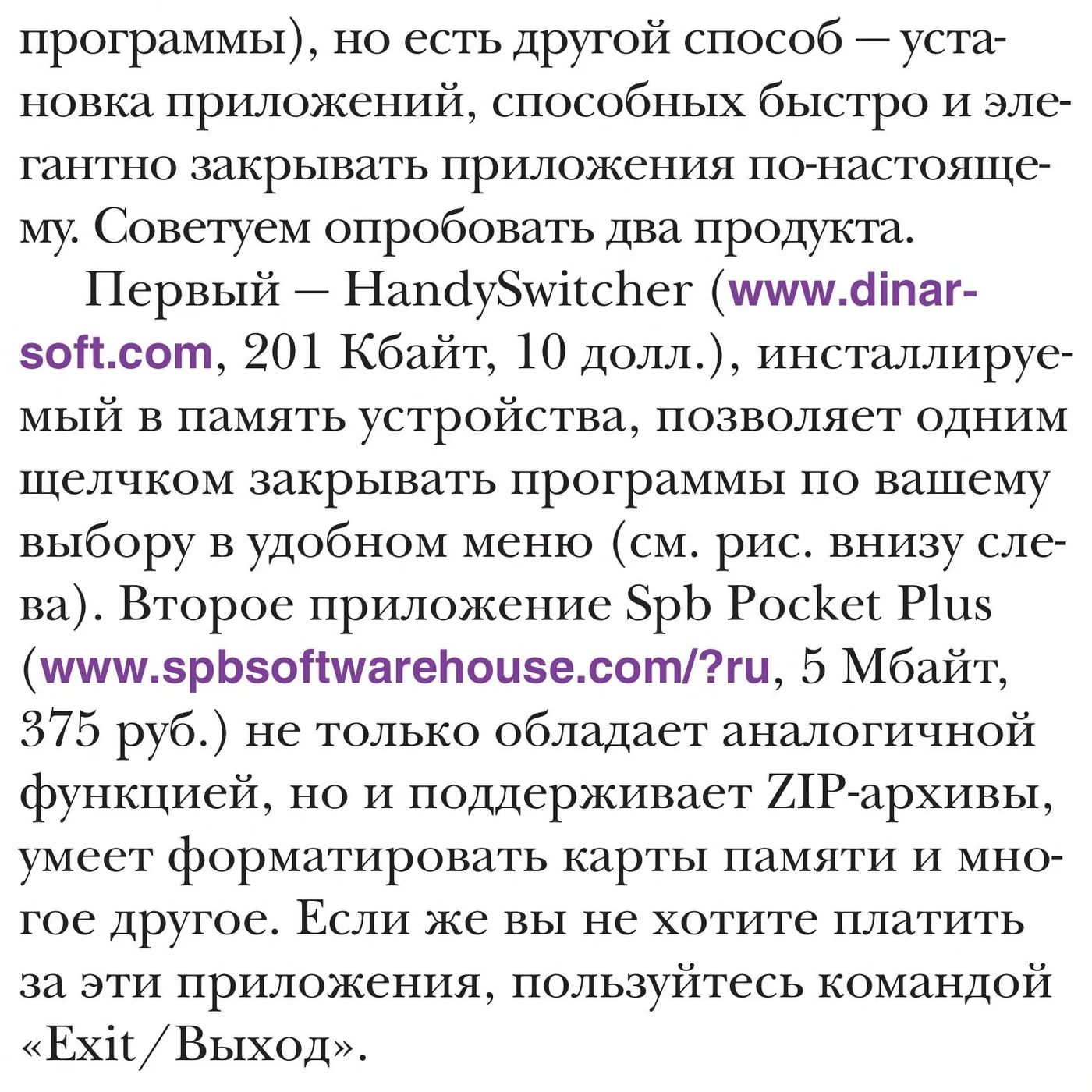
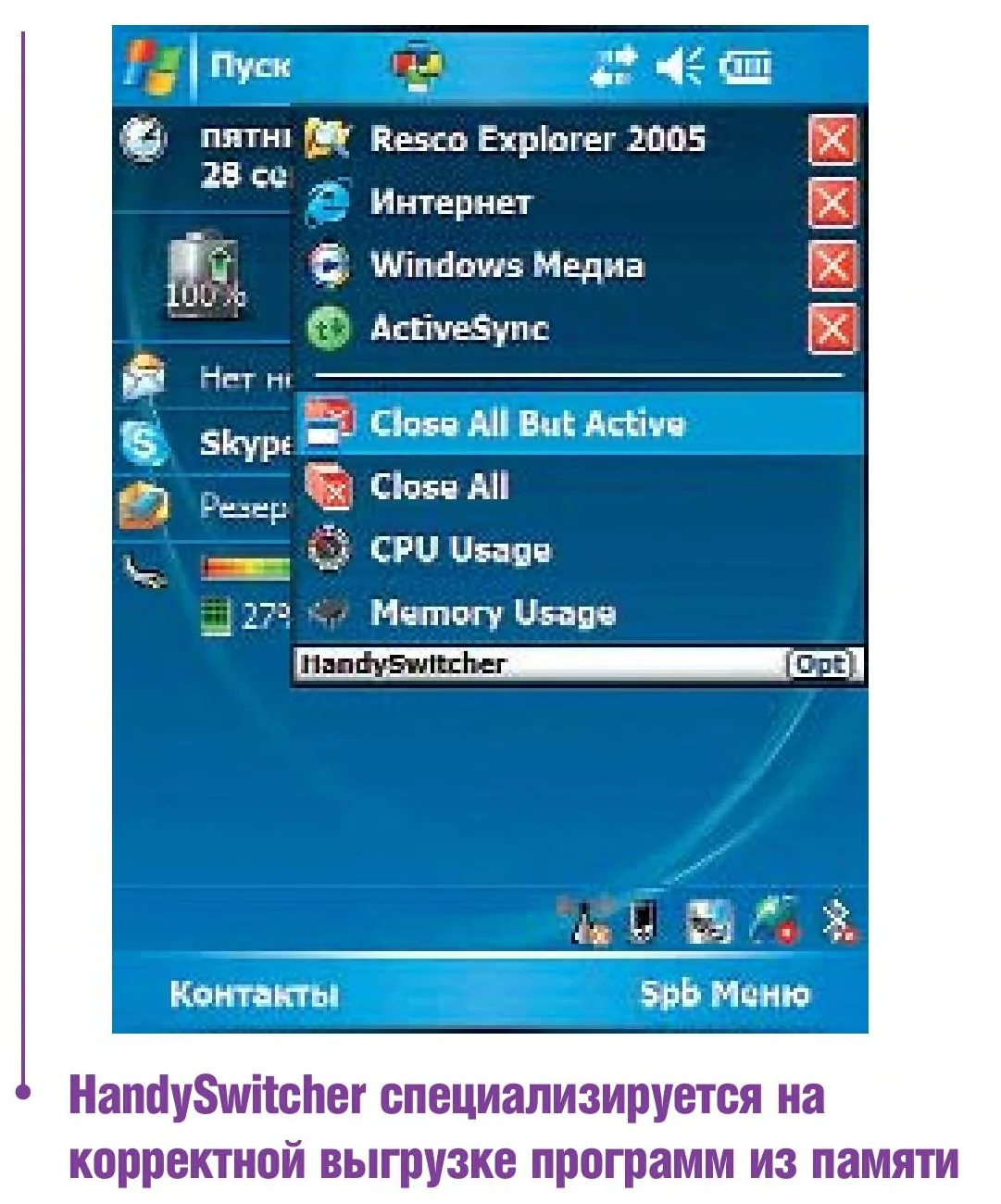
- Hard’n’SoftJul 2008Academy: closing programs for real (in Russian)
Academy: closing programs for real (in Russian)
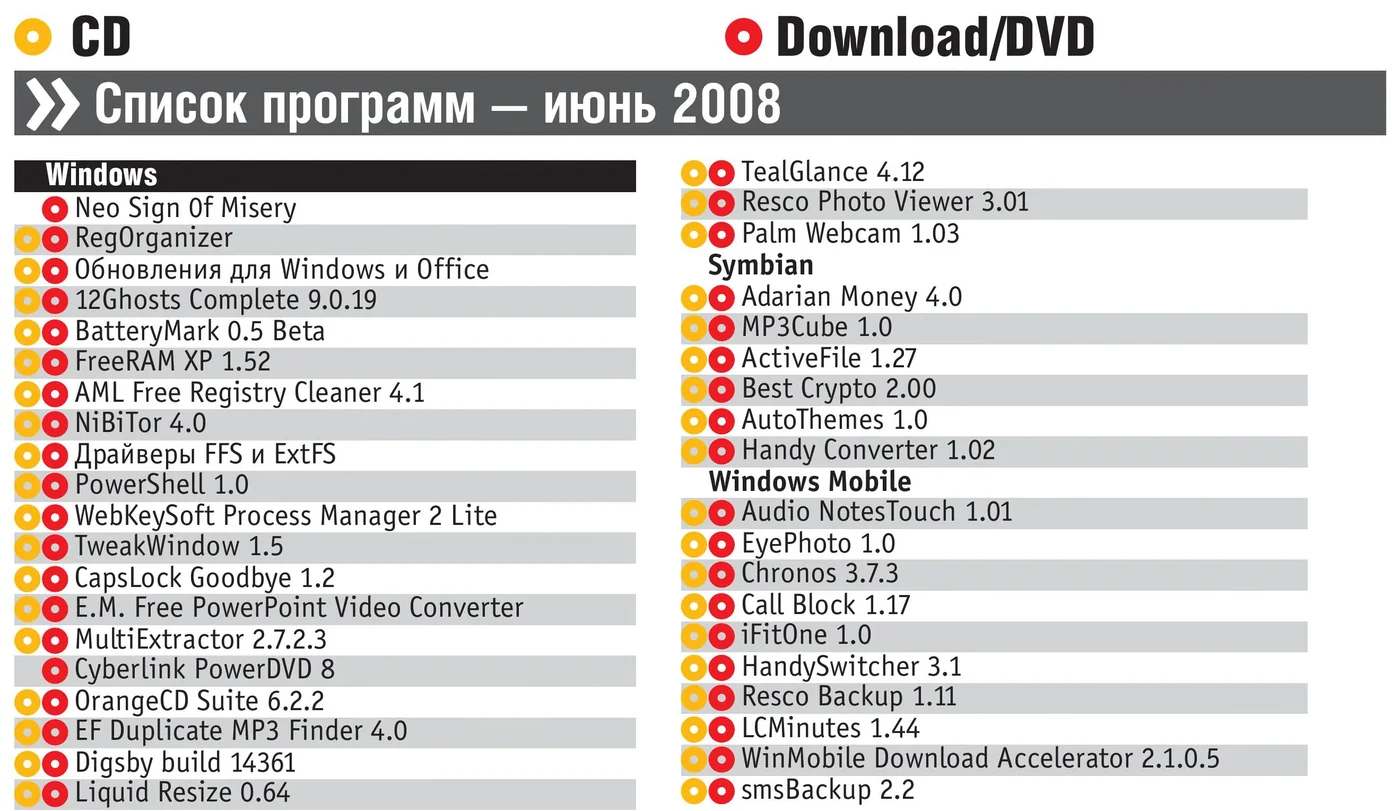
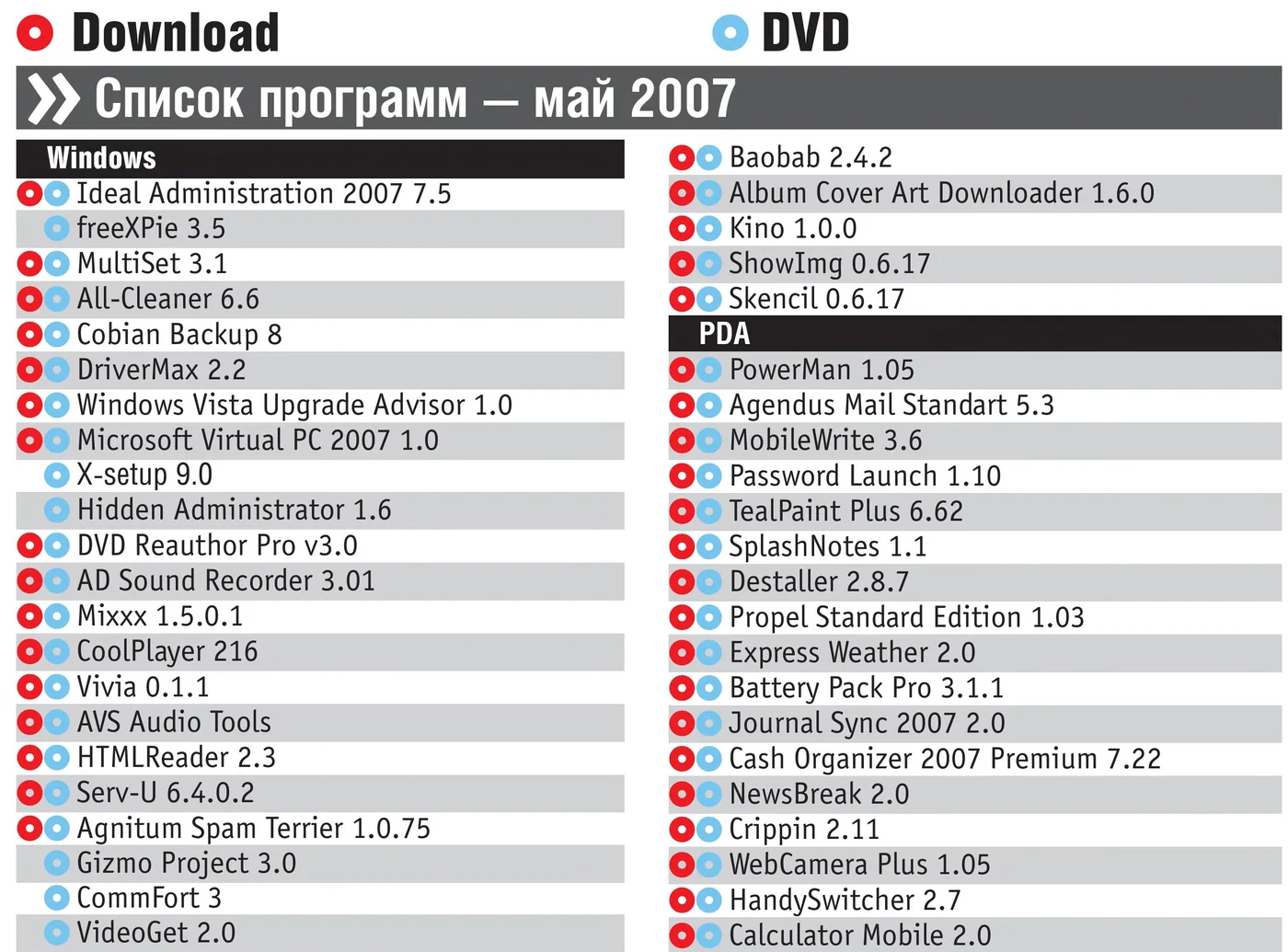
- CHIP magazine, RussiaJun 2008HandySwitcher 3.1, on the cover disc
HandySwitcher 3.1, on the cover disc
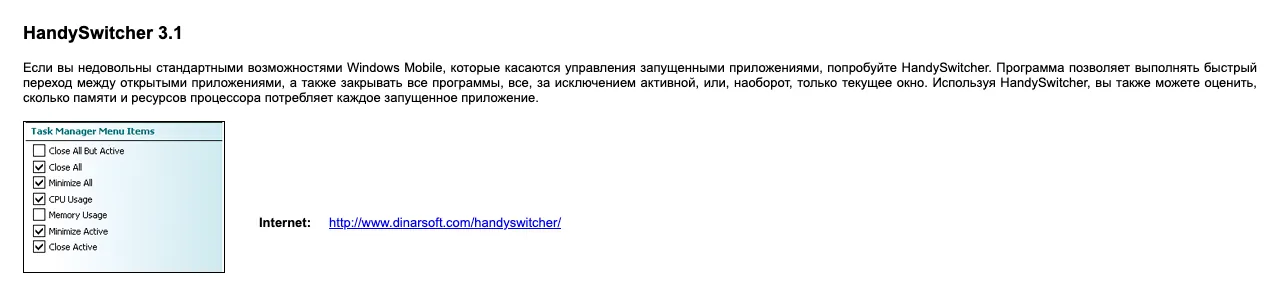
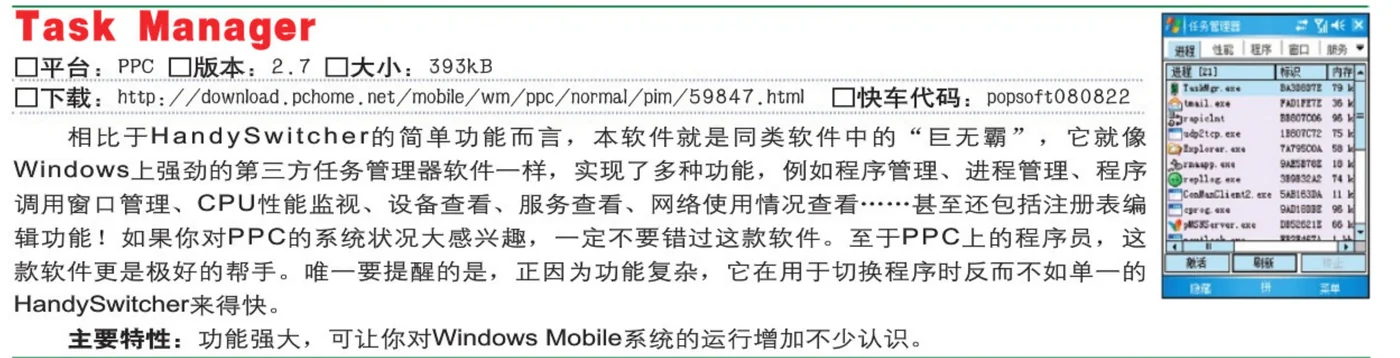
via the Internet Archive, archive.org item chip-dvd-ru-2008-06 - PopsoftApr 2008Task managers (in Chinese)
Task managers (in Chinese)
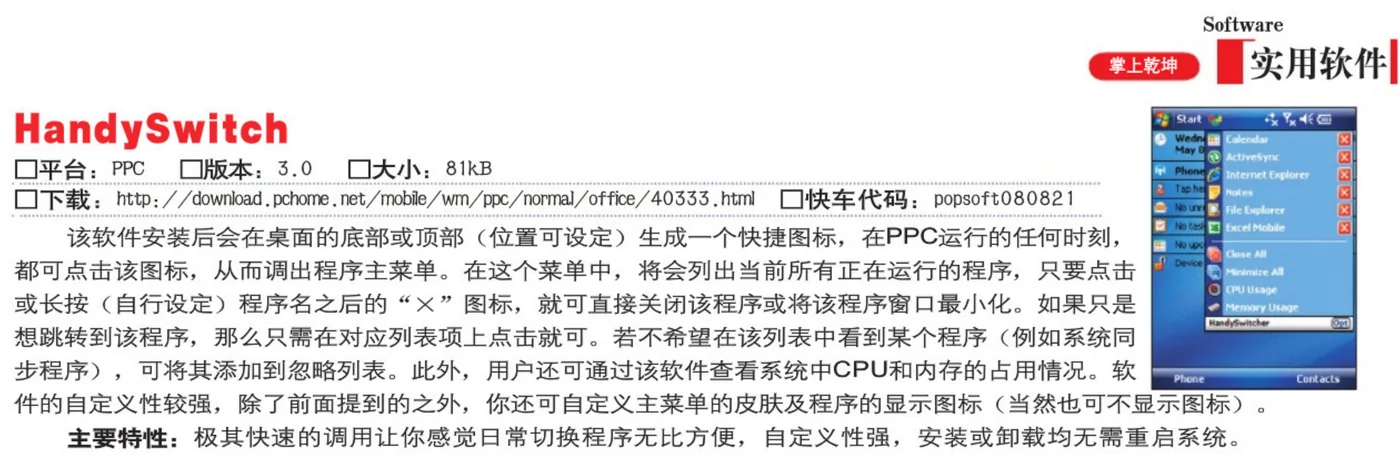
- GadgetMixMay 17, 2007Dinarsoft HandySwitcher 3 Reviewed!
Dinarsoft HandySwitcher 3 Reviewed!
simple-yet-powerful application

via the Internet Archive, Wayback Machine, June 27, 2007 - CHIP magazine, RussiaMay 2007HandySwitcher 2.7, on the cover disc
HandySwitcher 2.7, on the cover disc
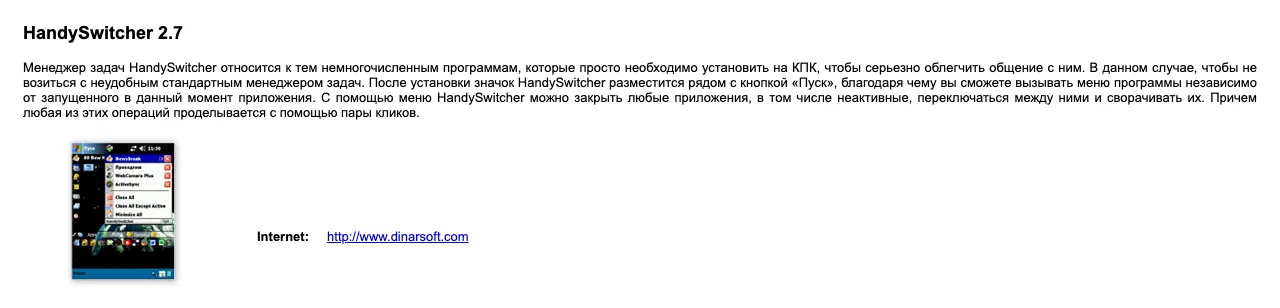
via the Internet Archive, archive.org item chip-dvd-ru-2007-05 - GadgetMixJan 17, 2007Dinarysoft HandySwitcher Reviewed!
Dinarysoft HandySwitcher Reviewed!
functional and must have on every Pocket PC

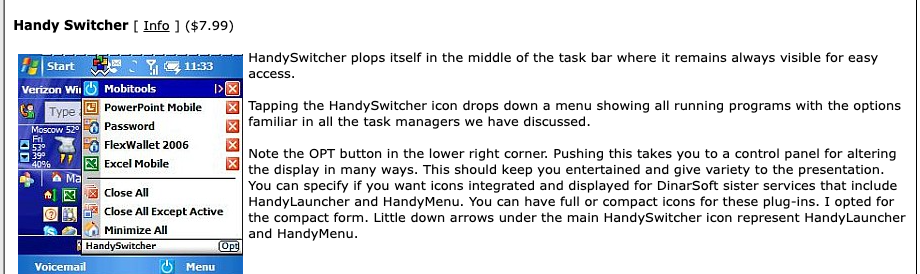
via the Internet Archive, Wayback Machine, October 6, 2007 - TreoCentralJun 19, 2006Task Manager Shoot-Out for the 700W
Task Manager Shoot-Out for the 700W
it remains always visible for easy access
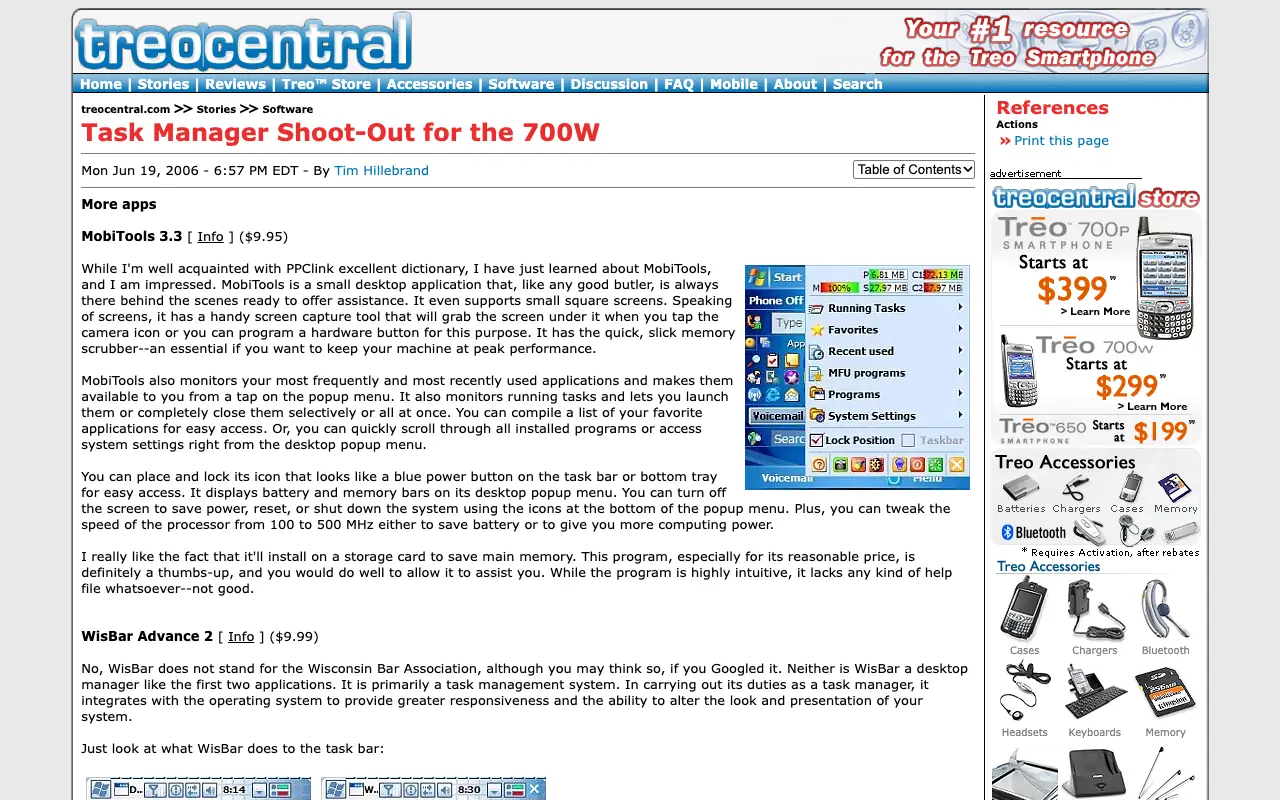
via the Internet Archive, Wayback Machine, July 3, 2006 - pdaBlastMar 27, 2006HandySwitcher Task Management for Your Pocket PC
HandySwitcher Task Management for Your Pocket PC
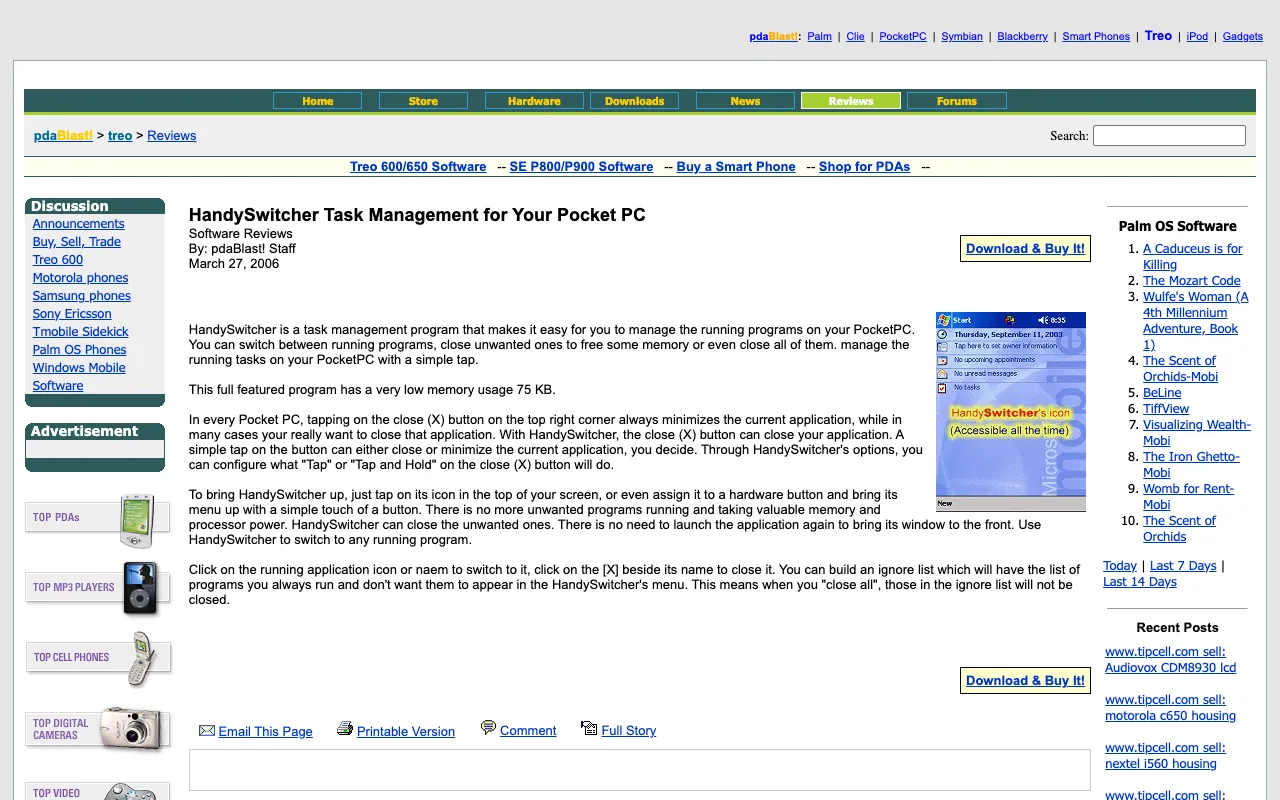
via the Internet Archive, Wayback Machine, April 18, 2006 - Smartphone & Pocket PC200Judges’ Favorites
Judges’ Favorites
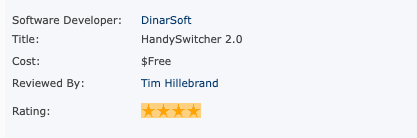
- Pocket PC LifeApr 17, 2004Handy Switcher V 2.0 Reviewed
Handy Switcher V 2.0 Reviewed
★★★★★
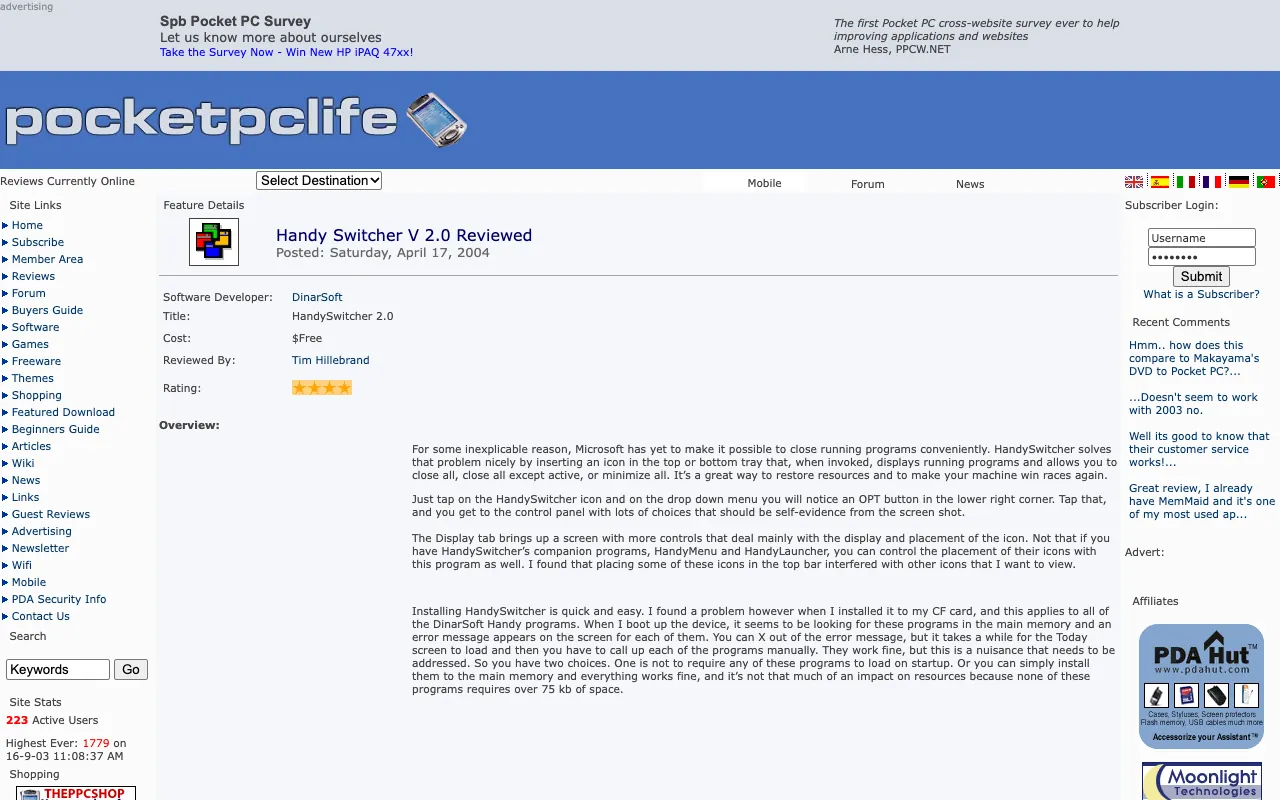
via the Internet Archive, Wayback Machine, September 26, 2004










Download
Here are all 5 installers the Internet Archive kept, as DinarSoft published them. Take the one marked latest: the .CAB installs straight on the device, the .exe installs from a Windows PC.
| File | Version | Size | SHA-256 |
|---|---|---|---|
| DinarSoftHandySwitcher_Demo.CABInstall on the Pocket PC · latestRecovered from the Internet Archive (Wayback Machine, March 1, 2009) | 3.1 build 78 | 246.6 KB | d7f2b1caada19d022800984fa21041e8af925275483d8fcb4bcc04f26d8bafa3 |
| DinarSoftHandySwitcher_Setup.exeRun on a Windows PC with ActiveSync · latestRecovered from the Internet Archive (Wayback Machine, March 1, 2009) | 3.1 build 78 | 203 KB | 92fcc8093362e3902147daa1fc04e534750f081ae930efb80b67c431be2f4ec2 |
| CHIP-2008-06_DinarSoftHandySwitcher_Setup.exeRun on a Windows PC with ActiveSyncRecovered from the Internet Archive (CHIP magazine’s cover disc, June 2008) | 3.1, first build, from CHIP magazine’s disc (June 2008) | 202.5 KB | 2f947f7d1d914a110918c16336c2d94e84485321c6de4fb36ab00e7721d96fcd |
| DinarSoftHandySwitcher27.exeRun on a Windows PC with ActiveSyncRecovered from the Internet Archive (Wayback Machine, March 6, 2007) | 2.7, the 2007 installer | 159.5 KB | ec094f4e83b8ad82ec2b9e78c729cbf5b80c7bbc9a18e26546e07ded4f6df69a |
| DinarSoftHandySwitcher27_20061223.exeRun on a Windows PC with ActiveSyncRecovered from the Internet Archive (Wayback Machine, December 23, 2006) | 2.7, the 2006 installer | 264 KB | b1d6c761478c182bba17e958a08c1db4a8a37140e8b064c5dc9644eed653a555 |
Pick an installer you downloaded. Your browser computes its SHA-256 fingerprint on your own device, nothing is uploaded, and looks for it among all 24 DinarSoft files. A match means every byte is the one the Internet Archive kept.
Unlock the full version
Every DinarSoft trial asked for an unlock key after 15 days. In 2026 Yasser Awad made HandySwitcher free, so here is the key, made the way DinarSoft made it.
One key for every device: HandySwitcher 3.1 accepts a key made from Yasser’s own name. Tap Register… on the About page and type the four groups of four letters.
For HandySwitcher 3.1.
Install it
- On a Pocket PC or Windows Mobile phone. Download the .CAB file marked latest. Copy it to the device on a memory card, through ActiveSync, or download it in Pocket Internet Explorer. Then open File Explorer on the device and tap it. It installs itself, like tapping an .apk on Android.
- From a Windows PC. Connect the device through ActiveSync on Windows XP, or Windows Mobile Device Center on later Windows, and run the Setup .exe. It sends the app to the device.
- In an emulator. Microsoft’s Device Emulator runs Windows Mobile 5 and 6 on a Windows PC. In its File menu, choose Configure and set a shared folder. The device sees that folder as its Storage Card. Put the .CAB there and tap it in File Explorer.
- Unlock it. Open HandySwitcher, find its Register screen, and type the key from this page.