
HandyMenu
Powerful System Access
One tap in the corner for the things you reach for most: power off, reset, screen capture, brightness, memory, rotation.
- Latest
- 3.7, June 2008
- First
- 1.0, July 2003
- Price then
- $5.99
- Today
- Free
- Runs on
- Pocket PC 2002, Windows Mobile 2003 and 5 (3.6); Windows Mobile 6 too (3.7). Portrait, landscape and square screens
The story
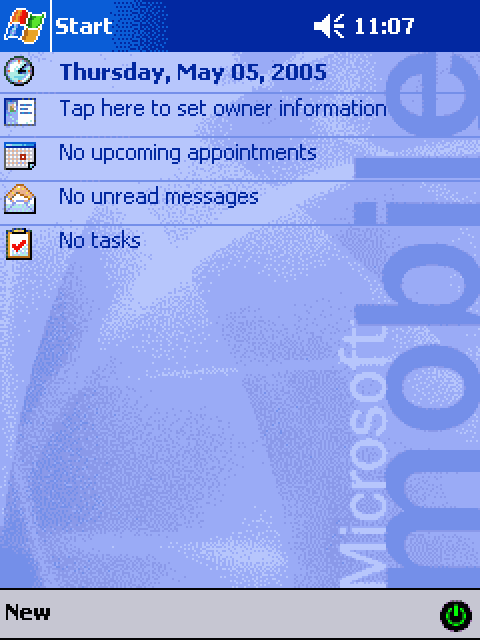
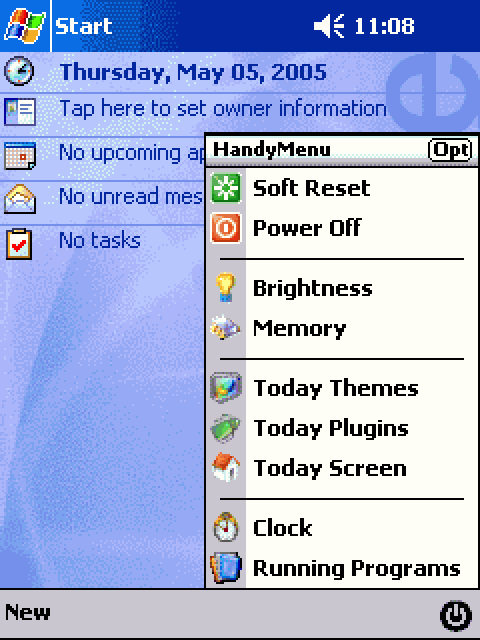
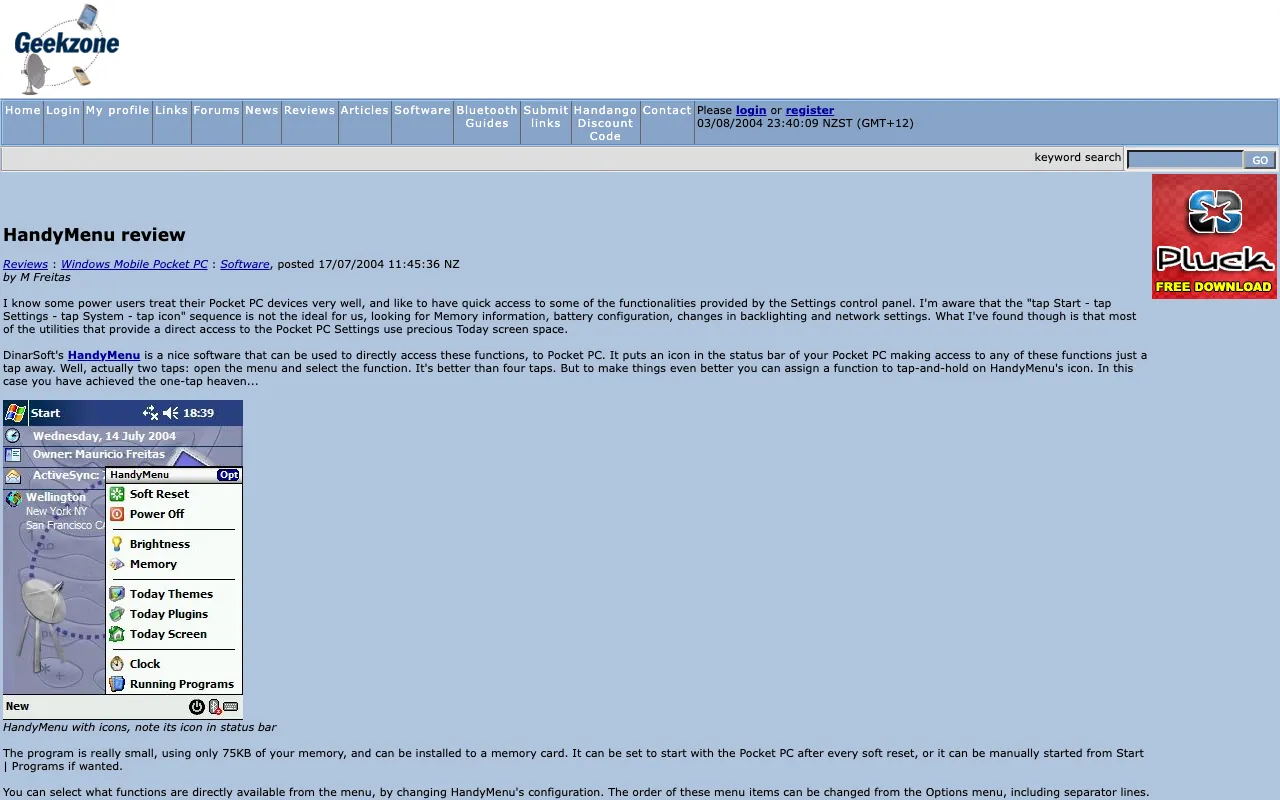
HandyMenu put a small power icon on the screen. Tap it, and a menu opened with the system controls people reached for every day: power off, soft reset, brightness, memory, Today themes and plug-ins, the clock, running programs. It added tools of its own too, like a screen capture, an IP address helper and a screen-off button. Think of the quick settings panel you swipe down on your phone today.
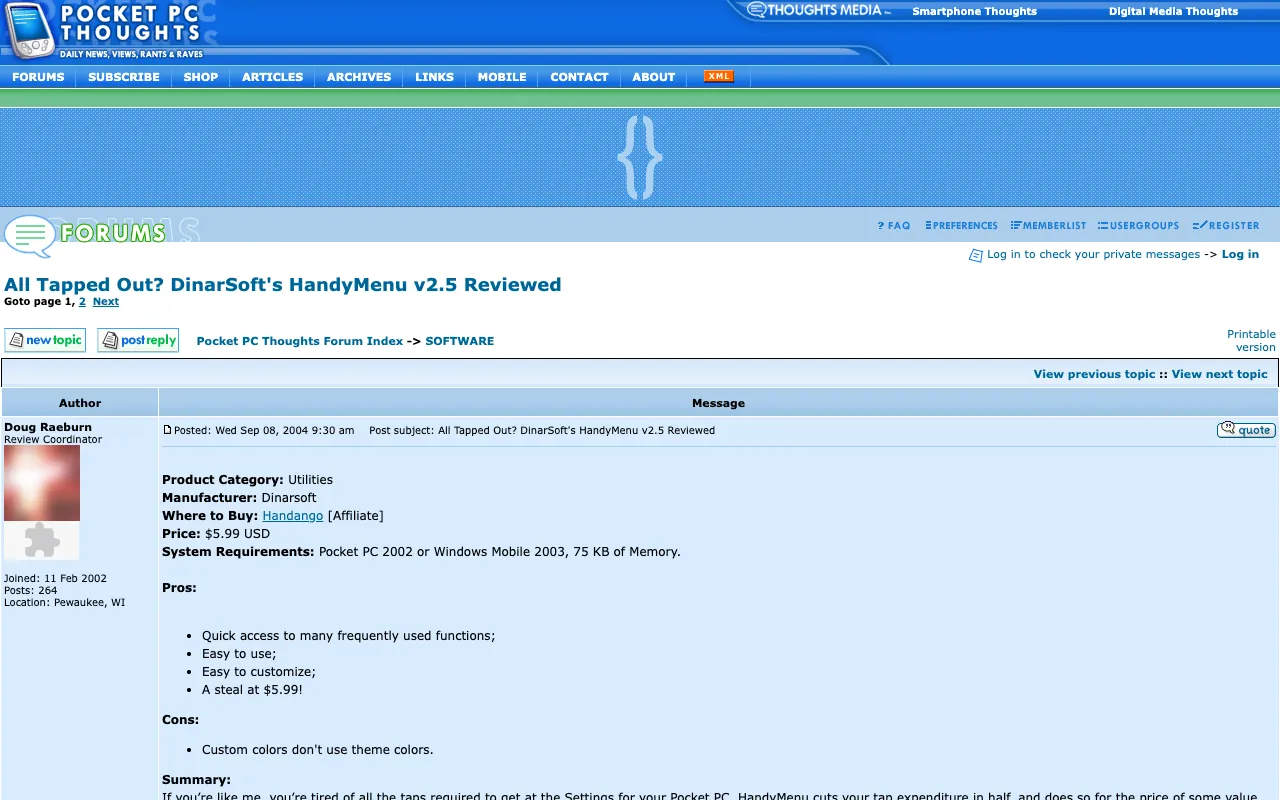
You could turn each item on or off, move it up or down, and color the menu your way. It spoke English, German, Dutch, Portuguese and Spanish, and switched between them while running. Pocket PC Thoughts called version 2.5 “A steal at $5.99!”
Every version
From DinarSoft’s revision history and installers. Press Run to play through them, or step one at a time.
-
HandyMenu 1.0 July 6, 2003
- The first release.
-
HandyMenu 2.0 March 31, 2004
- English and German.
- Colorful menus you design.
-
HandyMenu 2.5 July 29, 2004
- English, German, Dutch and Portuguese, switched while it runs.
- Windows Mobile 2003 SE support.
- Sharp icons for VGA screens.
- Shortcuts to MemMaid.
- Turns the screen left or right.
-
HandyMenu 2.6 October 6, 2004
- Follows the theme colors.
-
HandyMenu 2.7 November 1, 2004
- Speaks Spanish, with a fresh Dutch.
-
HandyMenu 2.9 June 8, 2005
- Flips the screen 180 degrees.
- Screen off and screen refresh.
- An IP helper: view, release and renew addresses.
-
HandyMenu 3.0 June 30, 2005
- Screen capture and screen orientation.
- VGA and Windows Mobile 5 support.
-
HandyMenu 3.6 March 6, 2006
- Square screens.
-
HandyMenu 3.7 June 24, 2008
- Windows Mobile 6, in the 2008 installer.
Twenty-seven shortcuts, one tap away
A Pocket PC kept its most useful switches deep inside Settings. HandyMenu put them all in one menu, behind one small icon: restart, power off, turn the screen, take a screenshot, check the network.
The last version, 3.7 from June 2008, is 81,408 bytes: smaller than a single photo on your phone. Everything below comes from that file, and from version 3.6 where the two differ.
Settings
Menu Items :
- Soft Reset
- Hard Reset
- Power Off
- Brightness
- Memory
- Battery Level
- Today Themes
- Today Plugins
- Clock
- Start Menu
- Uninstall Programs
- Sound Settings
- Hardware Buttons
- Running Programs
- Input Methods
- Today Screen
- Network Connection
- Phone Settings
- MemMaid
- MemMaid Cleaner
- Rotate Screen (L)
- Rotate Screen (R)
- Flip Screen
- Screen OFF
- Refresh today screen
- IP Helper
- Screen Capture
Quick Action :
Display
Language :
Custom Colors
Menu Text
Menu Background
Icons Background
Highlighted Text
Highlighted Background
Menu Colors :
HandyMenu 3.7
www.dinarsoft.com
Copyrights Reserved 2003-2008 (c)
About

This version of HandyMenu is Registered
Its settings sheet, rebuilt from dialogs 502 to 505 inside HandyMenu.exe. Change anything and the menu beside it follows.
Tap the tray icon for the menu. Hold it, and HandyMenu runs your Quick Action straight away, without opening anything. On the settings sheet you choose which items show, what the Quick Action is, the colors and the language. Both screens are rebuilt from HandyMenu’s own files: the labels from HandyMenu.exe, the 27 icons from HandyMenu.vga, the translations from HandyMenu.bin. The menu itself is owner-drawn: HandyMenu paints every row, icon column and highlight in the five colors you pick.
Switch the language on the Display page and the whole program changes, the menu and the settings together. Every label has a number. English lives inside the program. HandyMenu.bin holds German, Dutch, Portuguese, Spanish and Hungarian as plain text, one line per label, like IX3=Ausschalten. Its lookup takes the line with that number, and where a language has no line, the English label stays. Apps still translate this way today: a key per string, one file per language, English as the fallback.
For engineers: the whole lookup, nine instructions
cmp r1,#80 ; room for 80 labels movge r0,#0 ; past the end: no label add r2,r0,r1,lsl #2 ; this label’s slot, 4 bytes each ldr r3,[r2,#4] ; the translation cmp r3,#0 ; is there one? movne r0,r3 ; yes: use it addeq r3,r1,#81 ; no: the English slot, 81 places on ldreq r0,[r0,r3,lsl #2] ; the English label mov pc,lr ; return One jump for every item
Pick an item and the menu hands back a number from 1 to 27. A simple program would then test that number 27 times. HandyMenu needs one jump.
The C compiler turned the app’s switch statement into a jump table. It has one two-byte row per item, and each row says how far ahead that item’s code starts. The processor subtracts 1, doubles it, reads the row, and adds the row to where it stands. Four instructions, whichever item you picked. Choose an item in the menu above or in the list here, and step through it.
The table at 1527C: one two-byte row per item. Each row says how far past 15280 that item’s code starts.
pc = 15280 + 04C4 = 15744: Screen Capture
- 151E8
bl 17FC0; read the key from the registry - 151EC
bl 18044; check the license - 151F0
bl 182A8; r0 = what it found - 151F4
cmp r0,#7; 7: the 15 days are over - 151F8
bne 15254; no: go do the item - 15218over:
ldr r0,[r5,#4]; this program - 15220
mov r1,#500; dialog 500: Settings - 15248
bl DialogBoxIndirectParamW; show it, and stop - 15254
cmp r6,r8; r8 = 1001, the extra commands - 15260
sub r2,r6,#1; item number, counted from 0 - 15264
cmp r2,#26; 27 rows: 0 to 26 - 15268
bhi 1579C; anything else: ignore - 1526C
lsl r3,r2,#1; two bytes a row - 15270
add r3,r3,pc; pc reads as 15278 - 15274
ldrh r3,[r3,#4]; read the row - 15278
add pc,pc,r3; jump: 15280 + row - 1527C
dcw 0034,0058,00CC,...; the table, 27 rows - 15744case:
bl 149E8; the screen capture
-
read_key();// HMLicKey -
check_license();// on every tap -
if (license_state() == 7) {// trial over -
DialogBox(500); return;// Settings, with Register… -
} -
if (cmd >= 1001) { /* the extras */ } -
switch (cmd) {// built as a jump table -
case 27: /* Screen Capture */ break; -
/* 26 more cases, one per item */ -
}
- r6
- 27 what the menu returned
- pc
- 15744 the screen capture
Screen Capture: HandyMenu saves the screen as a .bmp file.
Look at the first three lines. Before any item runs, HandyMenu reads the key from the registry and checks its license again, on every single tap. If the 15 days are over, the item never runs: the Settings sheet opens instead, with the Register… button on its About page. Turn on “Trial is over” to follow that path.
Restart, wipe, sleep
Three items reach all the way down to the hardware. Each takes only a handful of instructions.
Soft Reset restarts the Pocket PC, like rebooting a phone, and your files stay. Hard Reset is the factory reset: every file, program and setting erased. Power Off puts it to sleep. Pick one, step the code, and the Pocket PC does what the code says. Hard Reset waits for your answer, as it did on the device.
Thursday, May 05, 2005
Tap here to set owner information
No upcoming appointments
No unread messages
No tasks
Hard Reset
HardReset will make you lose all the data stored on your PocketPC, are you sure you want to HardReset ?
Windows Mobile
Welcome
A brand-new start: no programs, no settings, no data.
- 152B4soft:
ldr r0,=0101003Ch; IOCTL_HAL_REBOOT - 152CC
bl KernelIoControl; ask the hardware to restart - 152D8hard:
mov r1,#2; title: string 2 - 152EC
mov r1,#45; the warning: string 45 - 15304
bl MessageBoxW; Yes or No - 15308
cmp r0,#6; 6 = Yes - 1530C
bne 1579C; No: nothing happens - 15318
ldr pc,[SetCleanRebootFlag]; next start: factory fresh - 1531C
ldr r0,=0101003Ch; IOCTL_HAL_REBOOT - 15340
bl KernelIoControl; restart - 1534Coff:
mov r0,#223; VK_OFF, the power key - 1535C
bl keybd_event; press it - 15364
mov r2,#2; KEYEVENTF_KEYUP - 15370
bl keybd_event; let it go
-
case SOFT_RESET: -
KernelIoControl(IOCTL_HAL_REBOOT, -
0, 0, 0, 0, 0); -
case HARD_RESET: -
if (MessageBox(0, text(45), text(2), -
0x24) == IDYES) {// Yes and No buttons -
SetCleanRebootFlag();// wipe on the way up -
KernelIoControl(IOCTL_HAL_REBOOT, -
0, 0, 0, 0, 0); -
} break; -
case POWER_OFF: -
keybd_event(VK_OFF, 0, 0, 0);// key down -
keybd_event(VK_OFF,0,KEYEVENTF_KEYUP,0);
- r0
- 0101003C IOCTL_HAL_REBOOT: restart
A few seconds later, the Today screen is back. Two instructions did all of that.
Restarting is one call, KernelIoControl, with one number: the system’s code for “restart now”. The factory reset is the same restart, with a note left for the next start: SetCleanRebootFlag. Power Off is a neat trick. There was no simple “sleep now” call, so HandyMenu presses the power button itself. It sends the power key’s code, 223, down and then up, and the system cannot tell it from a finger.
Most other items open one page of Settings directly. HandyMenu starts the Settings program with the page number on its command line: cplmain.cpl 16 1 opens the Clock page, cplmain.cpl 9 0 opens Sounds. Each one is a deep link into a control panel applet. Brightness took more care, because every maker kept that page somewhere else. HandyMenu looks for each in turn. It tries Brightness.exe, frontlight.cpl, backlight.cpl, backlight.exe, frontlight.exe, Fujitsu’s fjcpl.cpl, then a shortcut named HandyBrightness.lnk that you could make yourself, and only then the standard page. One menu item works on every brand.
A screenshot, byte by byte
Pocket PCs had no screenshot button. HandyMenu added one, and wrote the picture file itself, one header at a time.
The file is a BMP: 54 bytes of headers that say how big the picture is, then three bytes for every pixel. Step the code and watch the headers fill in. Then capture the Pocket PC beside it: the button builds a real .bmp the same way, and your computer opens it today.
The first 54 bytes of the file. Gray is not known yet, blue is known, green is written.
- 424D bfType the tag “BM”
- 36840300 bfSize file size
- 00000000 bfReserved always 0
- 36000000 bfOffBits pixels start here
- 28000000 biSize this header: 40
- F0000000 biWidth width
- 40010000 biHeight height
- 0100 biPlanes 1
- 1800 biBitCount 24 bits a pixel
- 00000000 biCompression none
- 00840300 biSizeImage bytes of pixels
- 00000000 biXPelsPerMeter 0
- 00000000 biYPelsPerMeter 0
- 00000000 biClrUsed 0
- 00000000 biClrImportant 0
Then 230,400 bytes of pixels, bottom row first.
- 14A04
bl MessageBeep; a beep - 14A14
mul r0,r3,r2 / bl Sleep; wait: delay × 500 ms - 14A20
bl GetDC; r0 = 0: the whole screen - 14A50
bl CreateCompatibleBitmap; a blank picture, screen size - 14AA4
bl BitBlt; copy every pixel: the shot - 14AB4
bl InvalidateRect; repaint the screen - 14B04
bl 1497C; GetSaveFileName: where to? - 14B54
mul r3,r5,r4; width × height - 14B5C
add r3,r3,r3,lsl #1; × 3: blue, green, red - 14B74
str r2,[sp,#44]; biSize = 40 - 14B84
strh lr,[sp,#58]; biBitCount = 24 - 14BAC
bl CreateDIBSection; pixels as a plain array - 14BE4
bl BitBlt; copy the shot into it - 14C40
add r5,r3,#54; file size - 14C64
strh sb,[sp,#38]; pixels start at 54 - 14C70
strh r4,[sp,#28]; r4 = 4D42h: "BM" - 14C78
bl WriteFile; 14 bytes: file header - 14C90
bl WriteFile; 40 bytes: picture header - 14CA8
bl WriteFile; every pixel
-
MessageBeep(0); -
Sleep(delay * 500); -
HDC scr = GetDC(NULL); -
bmp = CreateCompatibleBitmap(scr,w,h); -
BitBlt(mem,0,0,w,h, scr,0,0, SRCCOPY); -
InvalidateRect(NULL, NULL, FALSE); -
if (!GetSaveFileName(&ofn)) return; -
BITMAPINFOHEADER bi = {40,w,h,1,24}; -
size = bi.biSizeImage = w * h * 3; -
CreateDIBSection(mem,&bi,0,&bits,0,0); -
BitBlt(dib,0,0,w,h, mem,0,0, SRCCOPY); -
bf = { 'BM', 54 + size, 0, 0, 54 }; -
WriteFile(f, &bf, 14, &n, NULL); -
WriteFile(f, &bi, 40, &n, NULL); -
WriteFile(f, bits, size, &n, NULL);
- r2
- 230,400 bytes to write
Write the 230,400 bytes of pixels. Done: a real .bmp that any computer opens, then and now.
Look at the order. HandyMenu copies the screen first, and only then opens the Save dialog, so the dialog is never in your picture. The delay setting works the same way from the other side. It gives you time to open the screen you want before the copy is made.
Turning the screen, and turning it back
Windows Mobile 2003 Second Edition could turn the screen sideways. Earlier Pocket PCs could not. HandyMenu runs on both.
The secret is how it finds the function. A program normally lists every system function it uses, and Windows will not start it if one is missing. HandyMenu asks for ChangeDisplaySettingsEx by name while it runs, the first time you rotate, and keeps the answer for next time. That is loading a function at run time. On an older device HandyMenu still starts, and simply says, in your language, that rotation is not supported. Web developers do the same when they check for a browser feature before using it.
Rotate Screen (R), the first time: the screen goes to 90°.
- 12954
ldr r4,=1CDD4; the saved library - 1295C
ldr r3,[r4] / cmp r3,#0; loaded before? - 12964
bne 12988; yes: use the saved address - 1296C
bl LoadLibraryW; "coredll.dll" - 1297C
bl GetProcAddressW; "ChangeDisplaySettingsEx" - 12980
str r0,[r5]; keep it for next time - 1298C
cmp r0,#0; found? - 129C4
bl MessageBoxW; not found: string 66 - 12A0C
strh r7,[sp,#72]; dmSize = 192 - 12A10
str r8,[sp,#76]; dmFields = orientation - 12A18
mov r3,#2; CDS_TEST: only ask - 12A2C
ldr pc,[r5]; call it: the angle now? - 12A30
ldr r3,[sp,#192] / cmp r3,#0; already turned? - 12A4C
movne r6,#0; yes: go back to 0 - 12A88
str r6,[sp,#384]; the angle to set - 12A98
mov pc,r4; call it again: turn
-
static HMODULE lib; static CDSEX cds; -
if (!lib) {// first time only -
lib = LoadLibrary(L"coredll.dll"); -
cds = GetProcAddress(lib, -
L"ChangeDisplaySettingsEx"); -
} -
if (!cds) { say(66); return; }// unsupported -
DEVMODE dm = { .dmSize = 192, -
.dmFields = DM_DISPLAYORIENTATION }; -
cds(NULL, &dm, NULL, CDS_TEST, NULL); -
if (dm.dmDisplayOrientation)// turned? -
angle = 0;// go back -
dm.dmDisplayOrientation = angle; -
cds(NULL, &dm, NULL, 0, NULL);// turn
- dm
- 1 dmDisplayOrientation
Call it again, for real this time. The screen turns to 90°, and every program redraws to fit.
One function serves all three items. First it asks the system for the current angle. If the screen is already turned, any rotate item turns it back upright, so each item is also its own undo.
The network, in your pocket
IP Helper shows the Pocket PC’s address on the network. It can hand the address back and ask for a fresh one.
On Wi-Fi, a device borrows its address from the network’s DHCP server, the same way your laptop does today. Release gives the address back. Renew asks again, and four short messages fly back and forth. When a connection got stuck, these two buttons fixed it without a restart. Try them. The dialog is HandyMenu’s own, dialog 507 inside HandyMenu.exe; the addresses are made-up private ones.
Interface :
Current Address :
Gateway Address :
DHCP Server :
192.168.1.37
192.168.1.1
192.168.1.1
IP Helper
WINS Server :
0.0.0.0
Sec. WINS Server :
0.0.0.0
- REQUEST I would like 192.168.1.37.
- ACK It is yours, for the length of the lease.
For engineers: ask for the size, then ask for the data
add r1,sp,#0 / mov r0,#0 ; no buffer yet bl GetAdaptersInfo ; answer: the size it needs bl malloc ; exactly that much bl GetAdaptersInfo ; now fill it ldr r3,[r4,#412] ; this adapter’s index cmp r3,r5 ; the one picked in the list? ldr r3,[r4] ; no: next adapter movs r4,r3 / bne 17828 ; until the list ends | 2002 to 2008 | 2026 | Why it is the same idea |
|---|---|---|
KernelIoControl(IOCTL_HAL_REBOOT) | A system app on a phone calling the platform’s reboot API | One call to the layer under the operating system. |
ctlpnl.exe cplmain.cpl 16 1 | ms-settings:dateandtime, or a Settings intent on Android | A deep link to one page of Settings. |
| A switch compiled into a jump table | What C, Rust and Go compilers still emit for a dense switch | One table read instead of a chain of compares. |
GetProcAddress("ChangeDisplaySettingsEx") | if ("share" in navigator) | Use a feature only where it exists. |
HandyMenu.bin, IX3=Ausschalten | One JSON file per language, with English as the fallback | Strings by key, translated outside the code. |
| Release and Renew | ipconfig /release and /renew, or “Forget network” on a phone | Hand the address back, borrow a new one. |
Fifteen days, written in disguise
Like every DinarSoft program, HandyMenu was shareware: try it free for 15 days, then buy a 16-letter key. Where it kept the install date is a small piece of craft.
The date sits in a 14-byte file, \Windows\xintra.dat, with a name that gives nothing away. Inside, the year, the month and the day are each stored twice, and every copy is dressed differently. The month appears as month × 2 + 3, and again as month × 2 + 1. Then every second byte goes up by one, a salt, and a checksum seals the lot. When HandyMenu reads the file, both copies must agree and the checksum must match. Change one byte and the trial ends. Pick an install date, step the encoder, then tap any byte.
On October 22, 2026, HandyMenu says: 12 days left.
- month × 2 + 323
- year + 72033
- year + 212047
- day × 2 + 543
- month × 2 + 121
- (day + 2) × 242
\Windows\xintra.dat, 14 bytes. Tap a byte to change it.
- Both years agree
- Both months agree
- Both days agree
- The checksum matches
- 181F0
ldrh r1,[r0]; the year - 181FC
add r3,r1,#21; year + 21: slot 2 - 18204
ldrh r3,[r0,#2]; the month - 18208
ldrh r0,[r0,#6]; the day - 18210
add r3,r2,#3; month × 2 + 3: slot 0 - 1821C
add r3,r3,#5; day × 2 + 5: slot 3 - 18224
add r3,r1,#7; year + 7: slot 1 - 1822C
add r3,r2,#1; month × 2 + 1: slot 4 - 18238
lsl r3,r3,#1; (day + 2) × 2: slot 5 - 182CCloop:
ldrb sb,[r6,r4]!; one byte - 182DC
add r7,r7,sb; add it to the sum - 182E8
add r3,sb,r1; + i mod 2: the salt - 182FC
blt 182C4; 12 bytes - 18308
mov r0,#31 / bl __rt_sdiv; sum mod 31 - 18338
strb r2,[r4,#12]; bytes 12 and 13: checksum
-
void encode(SYSTEMTIME *t, BYTE out[14]) { -
WORD y = t->wYear, m = t->wMonth, -
d = t->wDay; -
WORD s[6] = { m*2 + 3, y + 7, y + 21, -
d*2 + 5, m*2 + 1, (d+2)*2 }; -
memcpy(out, s, 12); -
int sum = 0; -
for (int i = 0; i < 12; i++) { -
sum += out[i]; -
out[i] += i % 2;// the salt -
} -
*(WORD *)(out + 12) = sum % 31;// the seal -
}
- r1
- 19 checksum
That remainder fills bytes 12 and 13: the checksum. Fourteen bytes, and the date is in there twice, salted and sealed.
This encoder is the same function, instruction for instruction, inside HandySwitcher 2.7 and HandyLauncher 3.4. It is one of 24 functions, 4,508 bytes of code, that all three 2006 builds share. Among them are the key engine, the date check, the color picker and the settings layout. DinarSoft wrote them once and built them into every app. Only the file name changes: HandySwitcher hides its date in tonter.bin, HandyLauncher in mcterthr.dat.
The key, now free
In 2026, Yasser Awad released HandyMenu as freeware. A key was always made from two things: your Pocket PC’s own code, shown in the License Key dialog, and the product’s name. The key function shuffles 120 numbers using the name, then uses the shuffle to turn each character of your code into a letter of the key. The HandySwitcher page steps through it. Version 3.7 also accepts keys made from a few codes built into the program in place of the device’s. One is his own name, YASSERMOHAMEDALI. Others are the names of his family, and GIVEAWAYVERSION1 served magazine give-aways. The key made from his name opens every copy of HandyMenu 3.7, on any Pocket PC.
Your Pocket PC Code:
BC11 - 18CC - CSRB - C9RG
Enter Your Unlock Key Here:
The key for HandyMenu 3.7BDLE - WBJD - RHBA - GEGX
The same 16 letters unlock every Pocket PC, whatever its code says.
HandyMenu’s own check routine stands behind this key. Its real ARM code, from the 2008 installer, ran in an emulator with the freeware key, the keys for random devices and a pile of near misses. It opened for the freeware key and every device key, and it stayed shut for every near miss. HandyMenu 3.7 keeps the key in the registry as HMLicKey.
Awards and reviews
| App | 2003 | 2004 | 2005 | 2006 | 2007 | 2008 |
|---|---|---|---|---|---|---|
| HandyMenu | Nominee | Nominee | Nominee | Nominee | Nominee | Finalist |
NomineeHandyMenu, 2003, Today-screen Plug-ins
NomineeHandyMenu, 2004, System and Registry
NomineeHandyMenu, 2005, System and Registry
NomineeHandyMenu, 2006, System and Registry
NomineeHandyMenu, 2007, System and Registry
FinalistHandyMenu, 2008, System and Registry

Pocket PC Thoughts
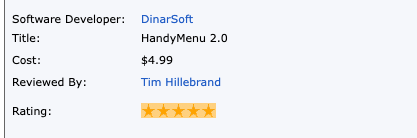
A steal at $5.99!
Read the reviewHandyMenu · Doug Raeburn, September 8, 2004
Arranged By: DateNewest on top
- GadgetMixJan 17, 2007HandyMenu Reviewed!
HandyMenu Reviewed!
a very useful and handy application which saves time too
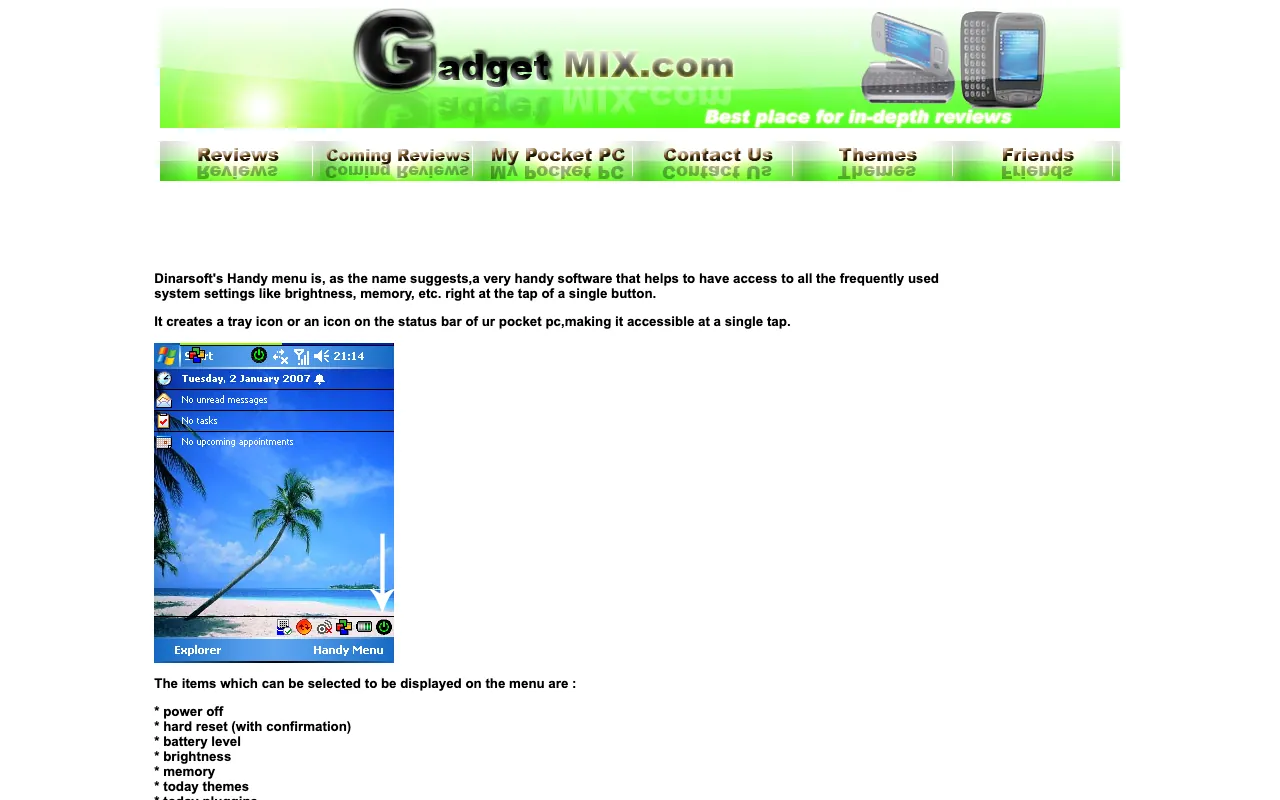
via the Internet Archive, Wayback Machine, September 22, 2007 - Pocket PC ThoughtsSep 8, 2004All Tapped Out? DinarSoft’s HandyMenu v2.5 Reviewed
All Tapped Out? DinarSoft’s HandyMenu v2.5 Reviewed
A steal at $5.99!
via the Internet Archive, Wayback Machine, March 9, 2005 - GeekzoneJul 17, 2004HandyMenu review
HandyMenu review
access to any of these functions just a tap away
via the Internet Archive, Wayback Machine, August 3, 2004 - Pocket PC LifeApr 16, 2004HandyMenu V.2.0 Reviewed
HandyMenu V.2.0 Reviewed
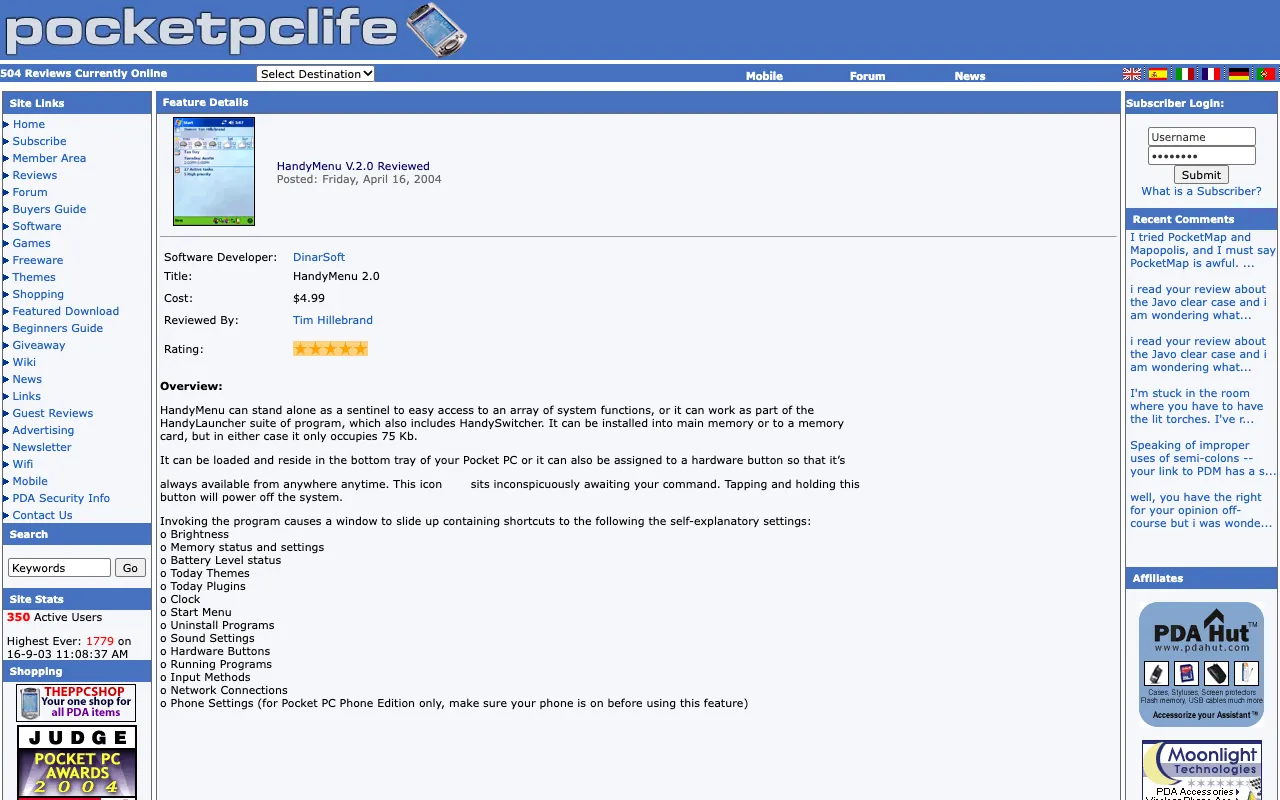
★★★★★
via the Internet Archive, Wayback Machine, May 25, 2004




Download
Here are all 3 installers the Internet Archive kept, as DinarSoft published them. Take the one marked latest: the .CAB installs straight on the device, the .exe installs from a Windows PC.
| File | Version | Size | SHA-256 |
|---|---|---|---|
| DinarSoftHandyMenu.CABInstall on the Pocket PC · latestRecovered from the Internet Archive (Wayback Machine, December 18, 2010) | 3.7 build 40, multilingual | 190.5 KB | 2162029f1d2c81c4fc6f3f92ce77bfff0ab3281664a150e7b707e46f9e0bd460 |
| DinarSoftHandyMenu_Setup.exeRun on a Windows PC with ActiveSync · latestRecovered from the Internet Archive (Wayback Machine, December 18, 2010) | 3.7 build 40, multilingual | 197 KB | b01af14ffeefe405aab18d661654bba5c025de1bcaa1231ddbf3f6d0d391b630 |
| DinarSoftHandyMenu36.CABInstall on the Pocket PCRecovered from the Internet Archive (Wayback Machine, December 23, 2006) | 3.6 | 208 KB | 8f58a741ffe34658a18991701c79323bcb963e0890aefdb8be26bb73cae39660 |
Pick an installer you downloaded. Your browser computes its SHA-256 fingerprint on your own device, nothing is uploaded, and looks for it among all 24 DinarSoft files. A match means every byte is the one the Internet Archive kept.
Unlock the full version
Every DinarSoft trial asked for an unlock key after 15 days. In 2026 Yasser Awad made HandyMenu free, so here is the key, made the way DinarSoft made it.
One key for every device: HandyMenu 3.7 accepts a key made from Yasser’s own name. Tap Register… on the About page and type the four groups of four letters.
For HandyMenu 3.7.
Install it
- On a Pocket PC or Windows Mobile phone. Download the .CAB file marked latest. Copy it to the device on a memory card, through ActiveSync, or download it in Pocket Internet Explorer. Then open File Explorer on the device and tap it. It installs itself, like tapping an .apk on Android.
- From a Windows PC. Connect the device through ActiveSync on Windows XP, or Windows Mobile Device Center on later Windows, and run the Setup .exe. It sends the app to the device.
- In an emulator. Microsoft’s Device Emulator runs Windows Mobile 5 and 6 on a Windows PC. In its File menu, choose Configure and set a shared folder. The device sees that folder as its Storage Card. Put the .CAB there and tap it in File Explorer.
- Unlock it. Open HandyMenu, find its Register screen, and type the key from this page.